Put Intel Alert on Your Phone
One tap opens Town of Stephenville Crossing's alert status. Free, and only takes a few seconds.
Android
- 1
Tap the red Install button at the bottom of this page.
- 2
Tap Install in the box that pops up.
- 3
Find Intel Alert with your apps. Touch and hold it, then drag it to your home screen.
No pop-up? Chrome: menu › Add to home screen. Samsung Internet: menu › Add page to › Home screen.
iPhone & iPad
- 1
Open this page in Safari.
- 2
Tap Share (bottom on iPhone, top on iPad).
- 3
Tap Add to Home Screen , then Add.
Chrome on iPhone? Tap in the address bar, then Add to Home Screen.
Red or Green?
CURRENTLY ACTIVE: Structure Fire
Red bar – an emergency is happening now. Read it and follow the instructions.
Status: All Clear - There are currently No Active Emergency Alerts.
Green bar – all clear. No emergency right now.
Reading an Alert
Official Emergency Alert (red) – a safety issue. Take care.
Public Notice (green) – routine news, like road work or meetings.
Issued – when it was sent. The blue Updated badge shows the last change.
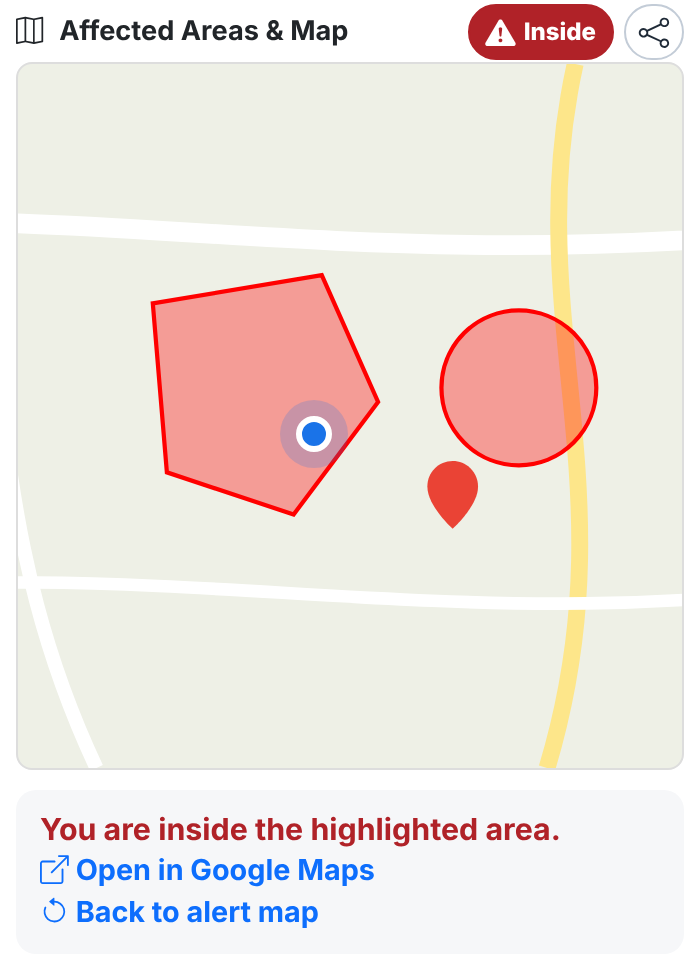
In the area? (during an emergency with a map) shows if you are inside the area. Your location stays on your phone.
Share sends the link to family and friends.
Change How You Get Alerts
No password needed – we text you a code.
- 1
Tap Settings at the bottom of the screen. (Computer: Manage My Alerts, top right.)
- 2
Type your phone number and tap Send Code.
- 3
Type the 6-digit code from the text and tap Verify & Login.
- 4
Fix your name, and turn texts, calls or e-mail on or off.
- 5
Tap Save Changes, then Log Out & Exit.
No code? Check the number. If it is right, you may not be signed up yet – use the Signup Page.
Tips
Save our number in your contacts as Stephenville Crossing – texts from (877) 735-1205, calls from (709) 978-8155
Recent Alerts lists the last 10 alerts. Tap one to read it.